.png)
How do I start a Progress Monitoring session for my student?
Step-by-Step Guidance
To begin a Progress Monitoring Session for a student:
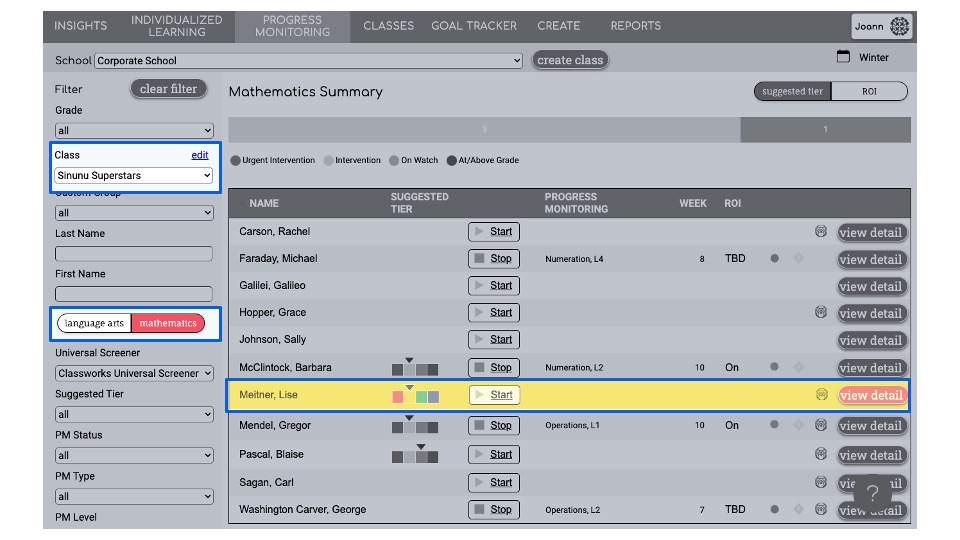
- Navigate to the Progress Monitoring screen and select the desired class from the drop-down menu.
- Use the toggle on the left-hand side of the screen to select the subject (Mathematics or Language Arts)
- Progress Monitoring is managed at the individual student level. Locate the student you want to start a session for and click the Start button to the right of their name.
- Select either Domain-Based or Curriculum Sampling as the type of progress monitoring for your student, along with the Level.
Read more about the differences between Curriculum Sampling and Domain-Based probes
- For our example, we will assign Domain-Based Progress Monitoring to Lise Meitner.
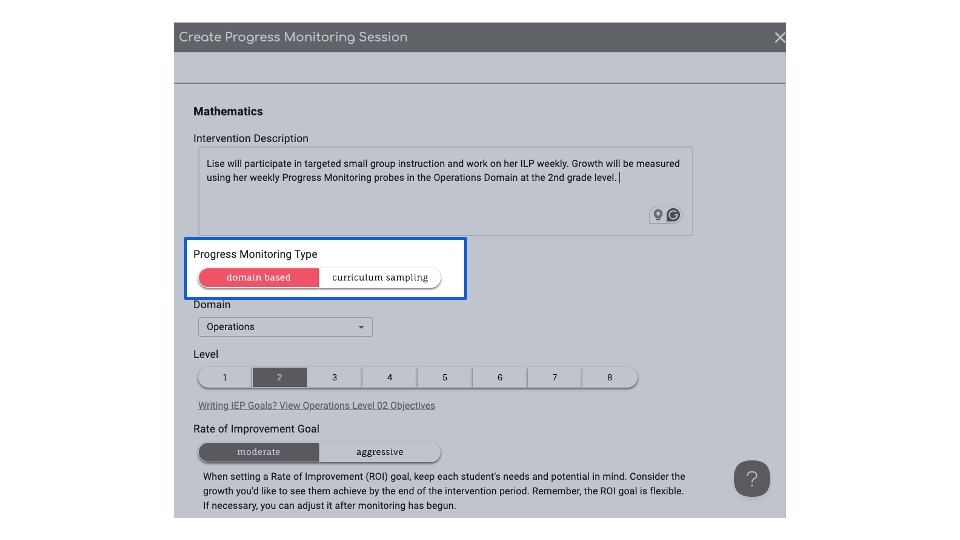
-
Since Lise completed the Academic Screener for Mathematics, we can see the grade level equivalence for each domain. We can manually select a different level if we have additional data to consider.
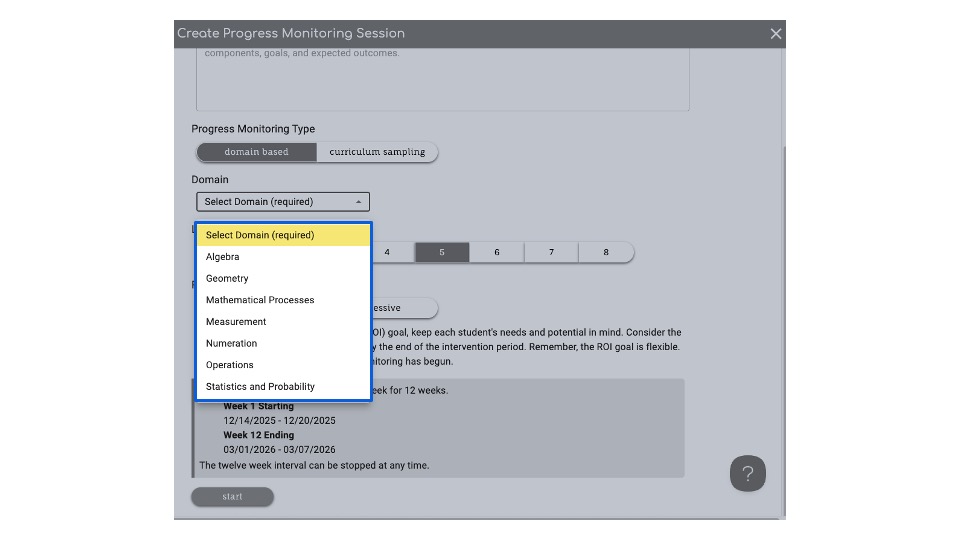
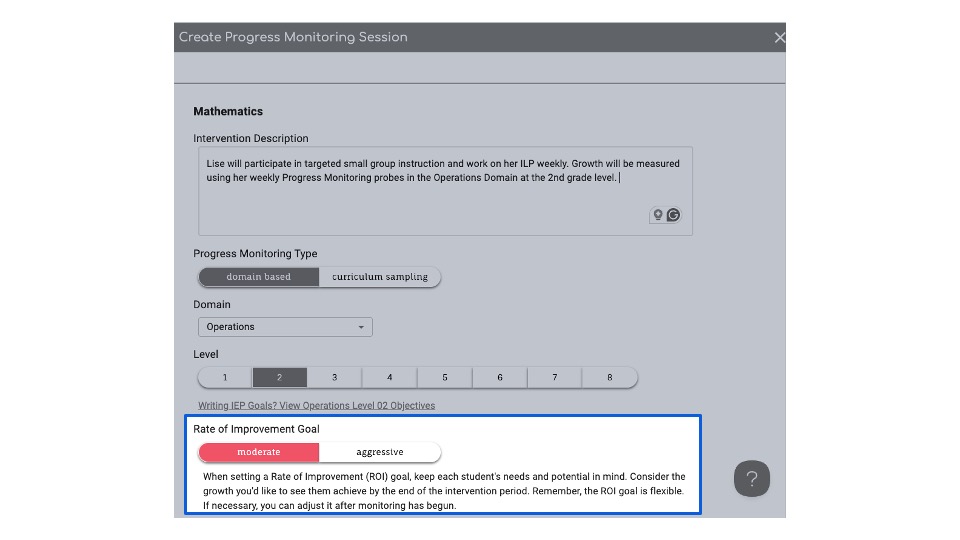
- Using the dropdown menu, we select Operations at the 2nd grade level for her progress monitoring.
Note: For students without an Academic Screener score, Classworks recommends one level below the student's seated grade level.
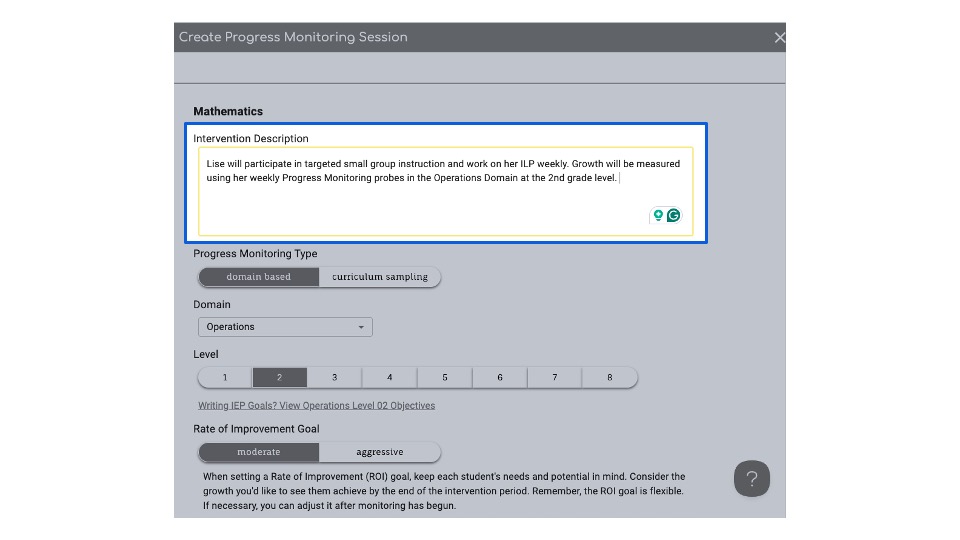
- Next, scroll back to the top of the screen and enter a brief description of the intervention or support Lise will receive. This description appears on Progress Monitoring reports and explains the instructional strategies being used, as well as what is being monitored for effectiveness during this Progress Monitoring session.
- Review the Rate of Improvement Goal for the student. This can be updated after the intervention has started if needed. See this article for the difference between Moderate and Aggressive.
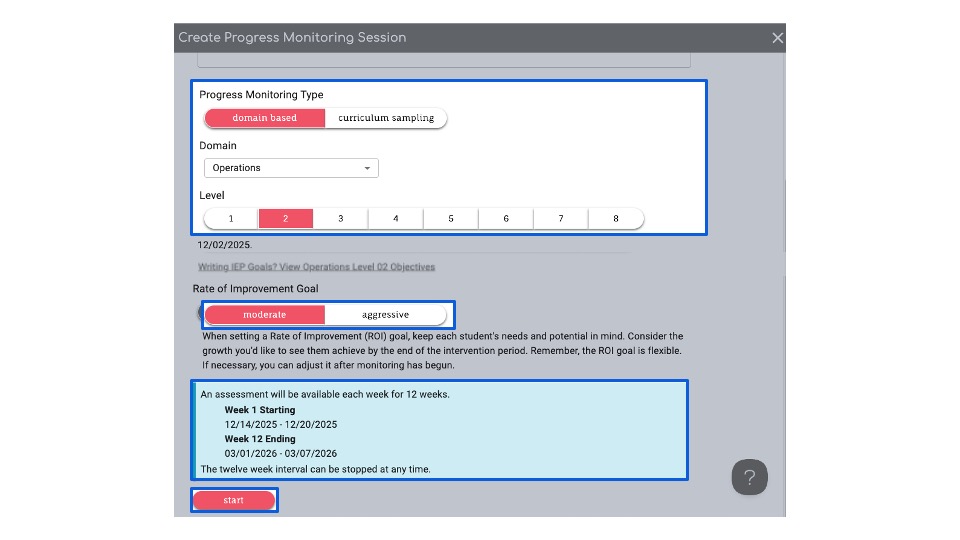
- Review the start and end dates that will be set when you click 'Start' and begin Progress Monitoring. The duration of the CBM is set for 12 weeks and can be stopped at any time.
- Finally, review the descriptions and settings and then click "Start."
Pro Tips
Assessent Partners: Classworks offers grade-level recommendations with partner integrations for Curriculum Sampling probes
Academic Screeners by Classworks are the only assessment data that offer domain-specific recommendations.
The Rate of Improvement can be adjusted at any time, from moderate to aggressive.
The level of a progress monitoring session cannot be changed mid-session. If the data indicates the student would benefit from a different grade level equivalent (GLE), stop the current session and restart a new session at the preferred level.