.png)
How do I duplicate a class?
You can duplicate a class when you edit a class!
Duplicating a class is useful when:
- Students move as a class group to different content area courses. Some schools departmentalize content in upper elementary grades
- A new staff member joins midway through a school year, and the school chooses to maintain a separate record of student progress with the previous instructor
Access the Edit Class screen
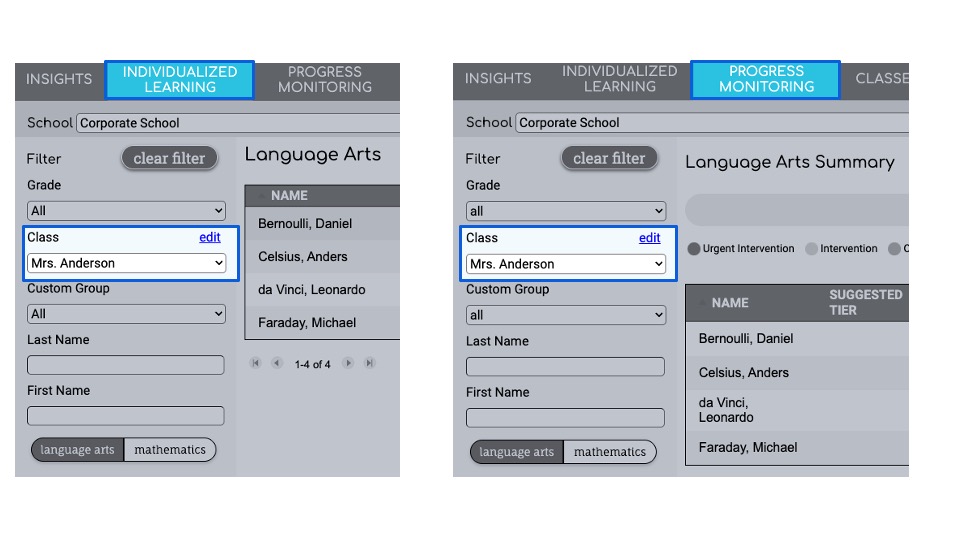
Navigate to the Edit Class Menu from the Progress Monitoring, Individualized Learning, or Classes screen
Progress Monitoring and Individualized Learning screens
- Select the class roster to edit
- Click Edit
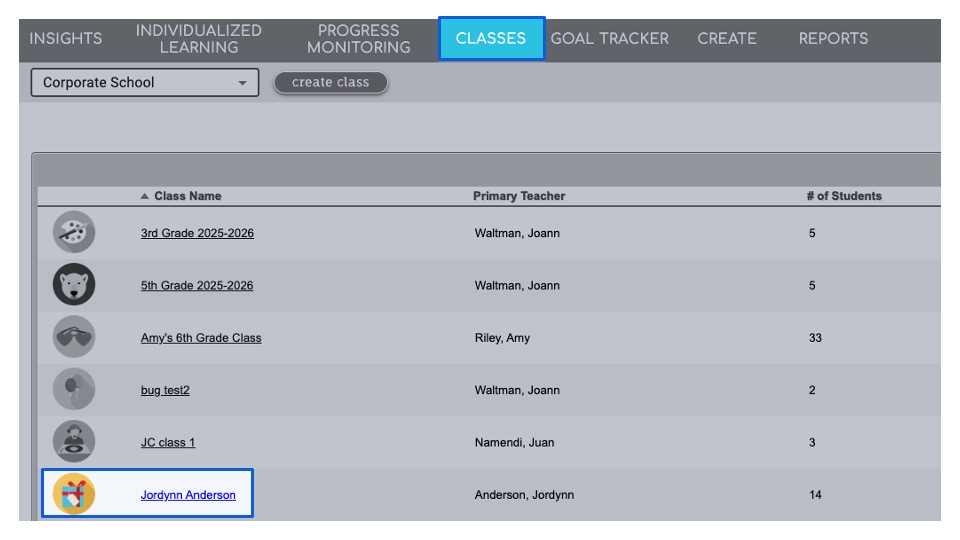
Classes screen
Select the class name to open the roster
Click "Edit Class" to open the roster
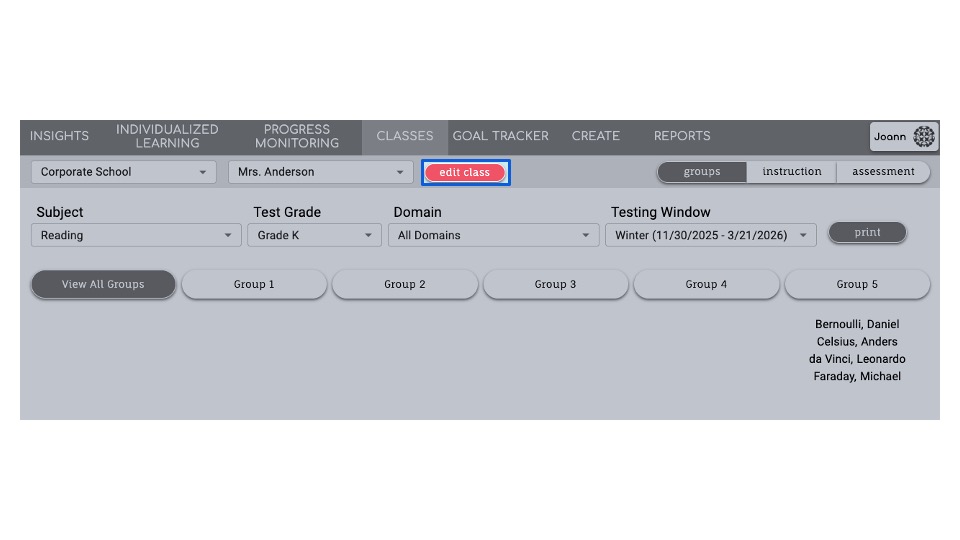
Step-by-Step Guidance
- Scroll to the bottom and click duplicate class.
- The page will refresh, and a new class, with the same teacher(s) and students, will be created.

- Name the class and choose an Icon.
- Add any additional co-teachers or students as desired

Scroll to the bottom and Save! Once saved, you will be brought back to your list of classes, where you will see the duplicate class that you just created: