.png)
Student View: Landing/Home Page
Landing Page or Main Screen
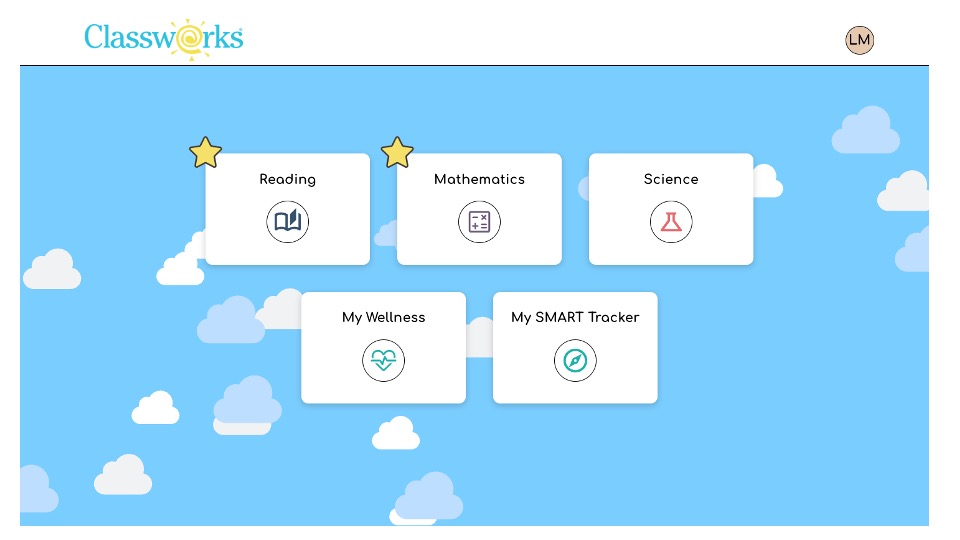
Students choose the content area they want to work on from this screen. For some students, one of the content areas displays an animated star that serves as a call to action, guiding them to priority tasks and helping them decide which area to work on first.
Students will spend the majority of their time working in Reading and Mathematics. In the example below, a star is shown in each of these content areas. This indicates a priority task the student should complete.
Reading and Mathematics
- After clicking the Reading or Mathematics Tiles, a student sees these options
- My Screener: Take your screener and view previous scores here
- My Progress Check: Complete your weekly progress monitoring probe here
- My Mastery Check: Complete your weekly mastery probe here
- My Learning Path: Complete units on your Individualized Learning Path and view Monthly Scores here
- My Teacher Assigned: Complete tasks your teacher assigned you here
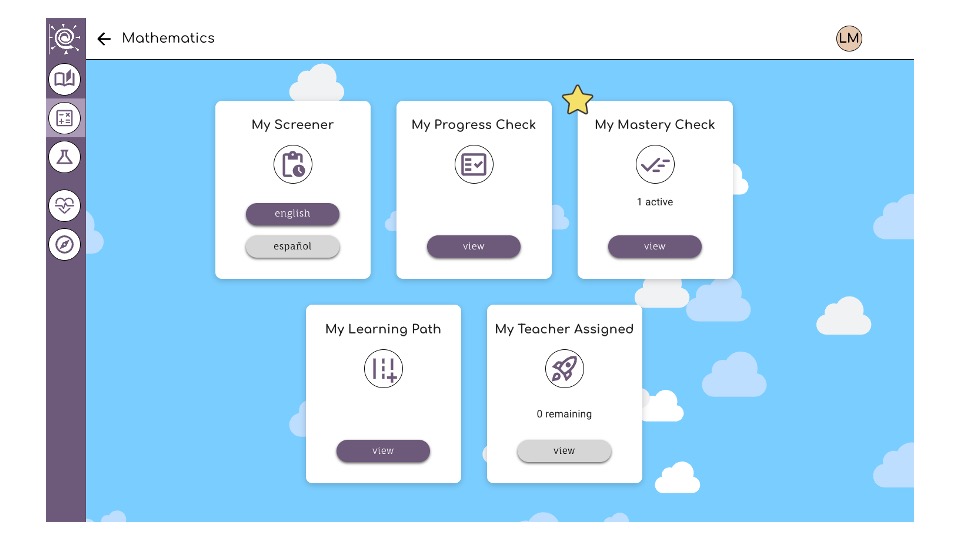
In the example above, you'll notice that "My Teacher Assigned" has a grey button. This indicates that this student hasn't been assigned tasks by a teacher.
Navigation
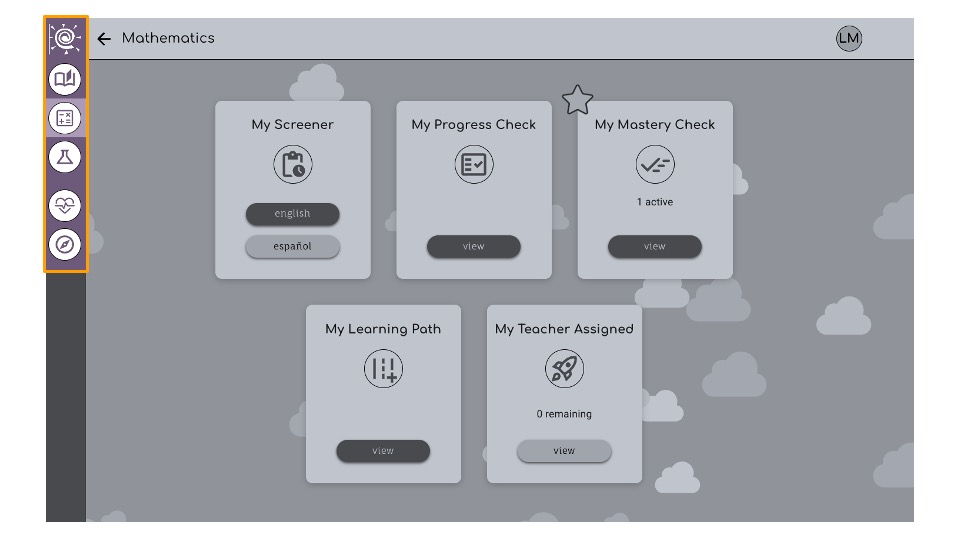
Students navigate to different parts of Classworks using the icons on the left side of the screen
Starting at the top:
- Classworks Swirl: Return to the Landing Page
- Open Book: Reading Page
- Calculator: Mathematics Page
- Beaker: Science Page
- Heart: My Wellness
- Compass: My Smart Tracker
Log Out
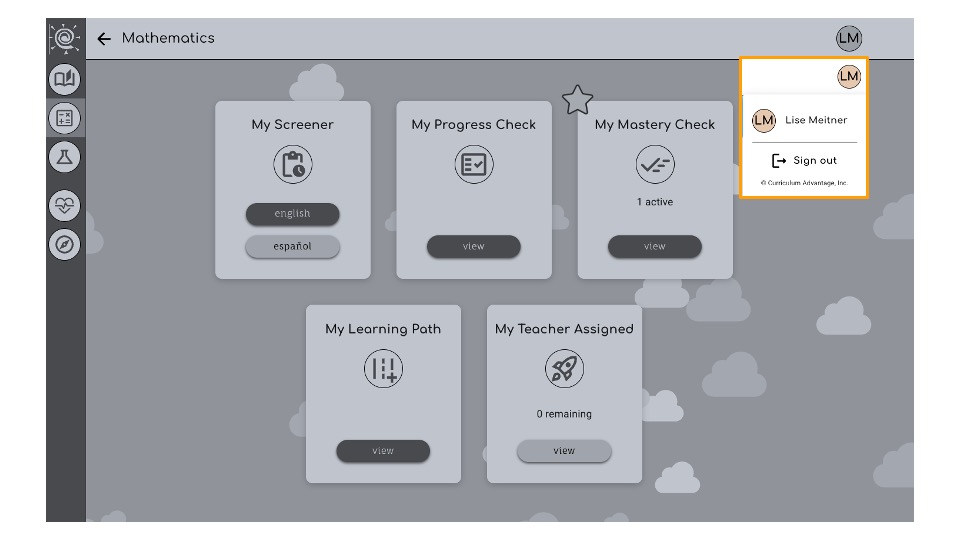
Students click on their initials in the top right corner to log out of Classworks.