.png)
How do I set the Universal Screener assessment windows?
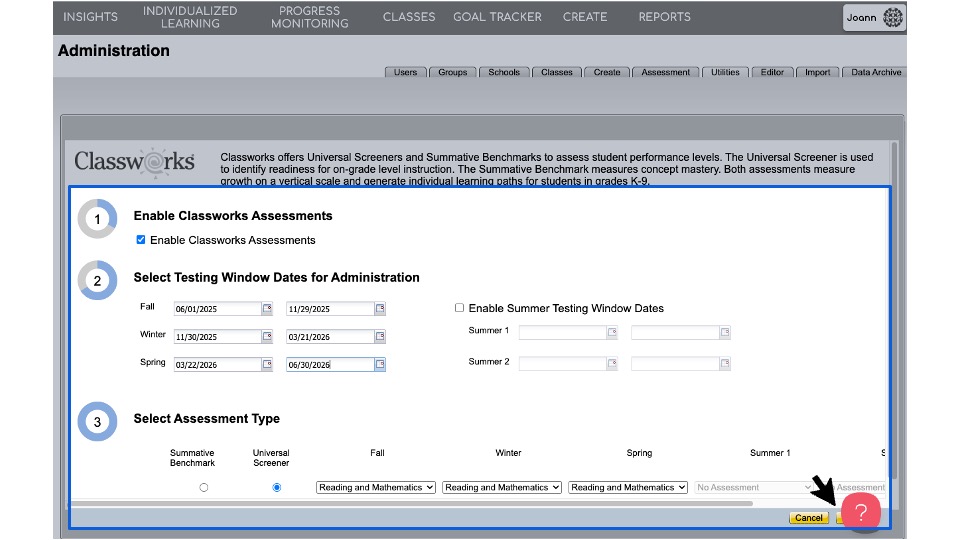
Assessment windows are frequently set during back-to-school conversations with your Classworks Account Manager. District Site Administrators can revise or update these dates when necessary during the school year.
Step-by-Step Guidance
Navigate to the Manage Classworks screen
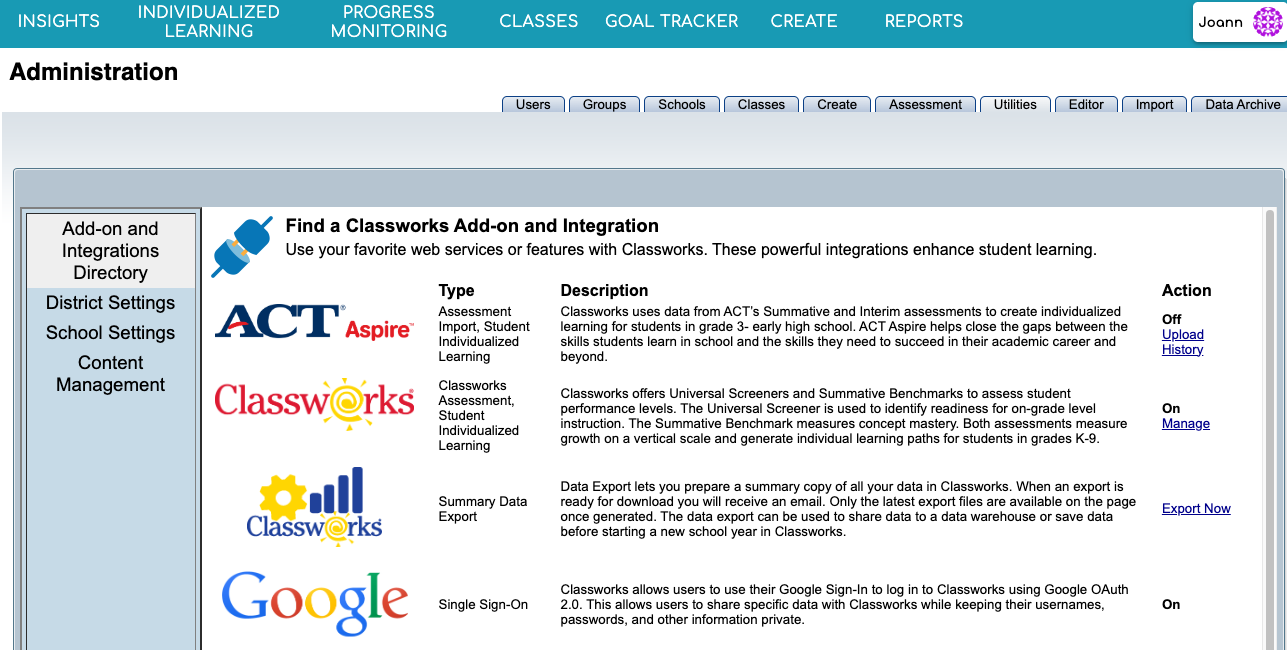
- Locate the Red and Yellow "Classworks Assessment, Student Individualized Learning" icon. It is usually near the top
- Click "Manage" along the right side of the screen
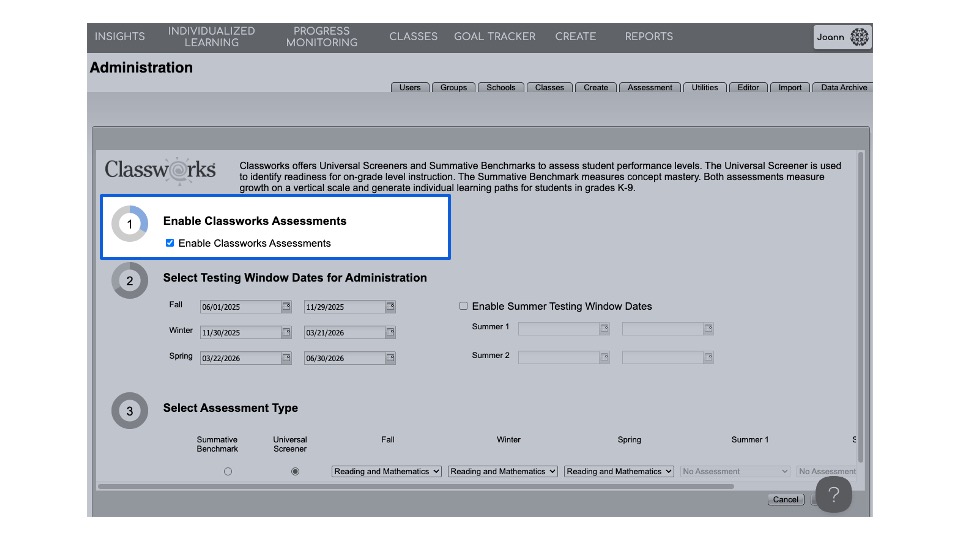
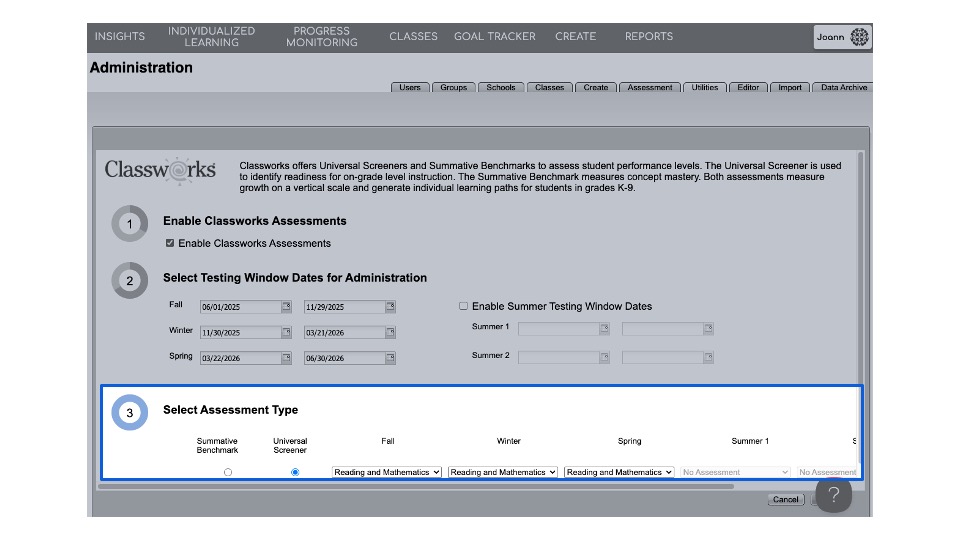
- The screen below will open. Check that "Enable Classworks Assessments" is checked
- Set the dates for each Assessment Window
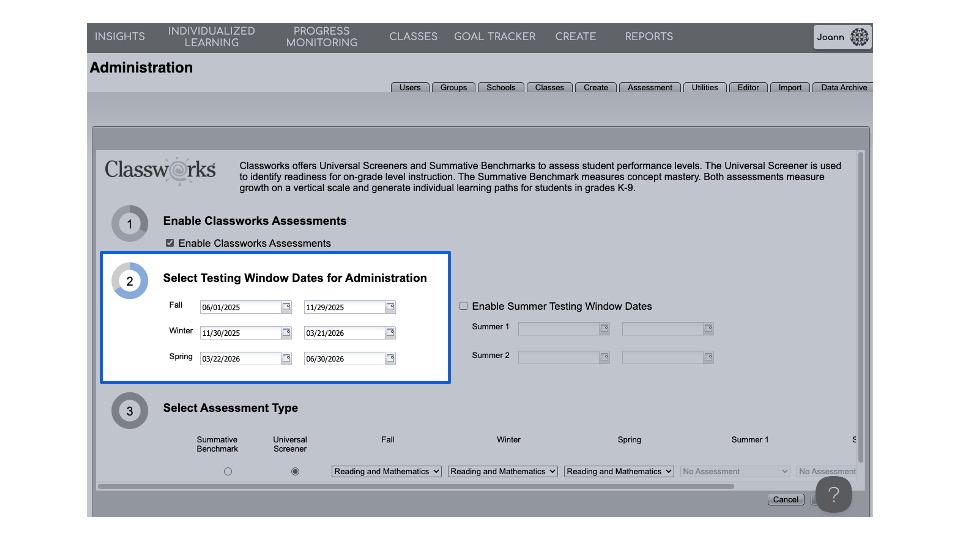
Note: An assessment is always available during the school year. The next window will open the day immediately after the previous assessment closes.
- Assessment windows should close on a Friday or Saturday
- Select Universal Screener as the Assessment Type
- Indicate the content areas assessed within each window
- Click "Save" - Note that the yellow save button can appear hidden behind the question mark.